Showing posts with label trouble shooting. Show all posts

Monday, 13 March 2017

Windows Service - How To Setup Email Notification On Service Failure

Problem:

We have designed a scheduler engine, which runs as a windows service and is used for executing different kinds of scheduled tasks. At times, the service stops and we get to know that only when some users complain of not being able to see the outcome of a scheduled task. Since then we have put this scheduler under the monitoring checklist, so that the windows monitoring team have a check on this service. But it would be even more effective, if this is automated. Wonder if Windows offers an easy way of setting up an alert on service stoppage.

Solution:

Windows does offer an option to configure email notification for one or more specific events occuring. If you have built your service application to handle the exceptions and write the exception information into the windows event log, then the easier approach is to leverage the windows event notification. If you have not aready used the Windows event log, in your service application, it is recommended to do so, as windows event log is the best place to look for errors and other events. Check out Stuart Lange's article on Handling Windows Service Errors. It is a series of six articles and you may want to check out all of them. Check out the Technet article Configure Notification Options to know more about setting up email notifications using the Windows System Resource Manager.

Just in case, you don't have the option of leveraging the Windows System Resource Manager as above, then you may make use of the Recovery options under the service properties dialog. You may double click on your service on the services console window and you will see a Tab named Recovery. The Recovery option enables you to specify a recovery action three times. See the figure below:


As you may observe, you four options to choose when a service fails: Take No Action, which is the default; Restart the servive; Run a program; and Restart the computer. While Restarting the computer is not a good idea if the computer also serves various applications and services, Though you have option to specify a delay for restart and
to send out messages to other connected computers that the computer is being restarted.


But certainly Run a Program option can be leveraged to send out an email notification. You may also notice that you have option to specify different actions for the first, second and subsequent failure. It would be a good idea to to try restarting the service atleast once or twice and then try using a custom program to send out an email notification. The custom program can even be a Power Shell script.

A simple PowerShell script to send out email notification could be as below:

$Username = "MyUserName";
$Password= "MyPassword";
$message = new-object Net.Mail.MailMessage;
$message.From = "YourName@gmail.com";
$message.To.Add($email);
$message.Subject = "subject text here...";
$message.Body = "body text here...";
$smtp = new-object Net.Mail.SmtpClient("smtp.gmail.com", "587");
$smtp.EnableSSL = $true;
$smtp.Credentials = New-Object System.Net.NetworkCredential($Username, $Password);
$smtp.send($message);


While there are more ways you can handle this problem, I hope this helps you to 

Sunday, 24 August 2014

Error connecting to SMTP Server

Problem:

All of you would have faced issues when connecting to a remote server on ceertain ports. The issue will be strange to trouble shoot as the same connection works from a different network or on the server and so on. I came across such a situation when building and testing a mailing component and I experienced that the .NET SmtpClient component was encountering exception. It took considerable time for me to trouble shoot and get it resolved.

Solution:

My first take was to try whether the credentials that I have used is just fine, by creating an email account in outlook and that worked fine. I just wanted to isolate various probable areas of concern. As such I then tried using an online SMTP server test service, which was showing an error that the client must first check for incoming mails. Telnet to the mailserver on port 25 also gave an error. I then examined our mail server, whether it has any such restrictions, but I could not find any specific restriction that could cause this issue.

My next step was to examine the details of the exception for any possible clues. The inner exception nested couple of levels deep revealed the error as "An attempt was made to access a socket in a way forbidden by its access permissions"

I then tried looking for solutions online there were many posts and one solution was about to try the following and one of that could solve this issue:
  • Restart the windows firewall service
  • Reboot the problematic machine
  • Restart the “TCP/IP stack”. Run CMD as administrator, type “netsh int ip reset resetlog.txt” to reset TCP/IP.
  • Try to temporarily disable antivirus.
After a bit of analysis, I could find that in my case it was the McAfee Endpoint Protection. I could find that the rule "Prevent mass mailing worms from sending mail" was set to block connections on port 25 with certain exceptions. I added the VWDExpress.exe to the exception list and then it started working fine.

Saturday, 2 August 2014

Losing Wi-Fi connection after sleep

Problem:

I use a HP Probook Laptop at home running Windows 8.1 pro. I usually close the laptop whenever I take a short break so that I can resume my work where I left after the break. But, I find that upon opening the Laptop, the wifi does not connect and that too randomly. That means, it works fine on certain occasions and it doesn't on certain occasions. Some times, a restart helps connecting but not always. What could be the problem and how to get this resolved.

By: Lalith Venkateswaran

Solution:

This could be due to a combination of multiple issues relating to the configurations in your laptop and as well as on your router.

Upon closing the lid, the laptop goes to sleep mode and powers down the built in wifi device. Which might cause orphaned IPs at your router end and as you reconnect again and again, you might exhaust the DHCP range that your router is configured with. Check if this issue happens when you are on battery. If yes, then you may configure your power options so that your device does not get powered down, every time you close your laptop. You find this setting in the Power management tab of the wifi-adapter configuration. You may also review the advanced power settings for the wifi adaptor under the power options.

When your wifi connection fails upon wake up, you may check if you are able to connect to a different wifi network. If you don't have a different wifi network, you simply use the hotspot feature on your smartphone and try if your laptop can connect to it. If yes, then it is not just the wifi device on your laptop, it could be due to issues with your wifi router as well. Some routers may have issues in accepting connections from the same devices with the same mac id, as the previous connection might still be there. Try the following steps, which might solve your problem:


  • Try setting a shorter DHCP lease time, so that the orphaned connections get released sooner, so that your router has no problem in accepting a fresh connection.
  • Use the DHCP reservation, so that every time the laptop tries to establish a connection, the router assigns the same IP and thus no need for lease expiry / renewal.


Post a comment if this does not solve your problem.

Sunday, 29 June 2014

Administration of Vodafone HG556 Router

Question:

I have a Vodafone HG556a router, which I was using while I was in Ireland with Vodafone network. This router has a USB port and as well as an ADSL port. So I thought that this router can be used back in India with BSNL or such other ADSL Networks in India. When I login to the router with the given default password, I could only see the basic settings and I could not see menu / options to setup the mac filtering and other advanced security settings. I searched google and figured out that there will be a different credential to get into the advanced settings. I tried with the default admin credientials but it does not work. Any help that you can offer here will be of great use for me.

By: Sreekumar Rajan


Answer:

Luckily, I too have a similar router and so I am sure I can help you here. Basically, these routers are locked with the network service providers and hence for any advanced setup, you may have to reach out to their customer service, who will be able to reconfigure your router remotely. Don't worry, there is a way to get the admin credentials and you do not have to reach out to the customer service team of Vodafone (overseas).


I assume that you have your basic user credentials. If not, you may perform a hard reset of the router and then look for the credentials
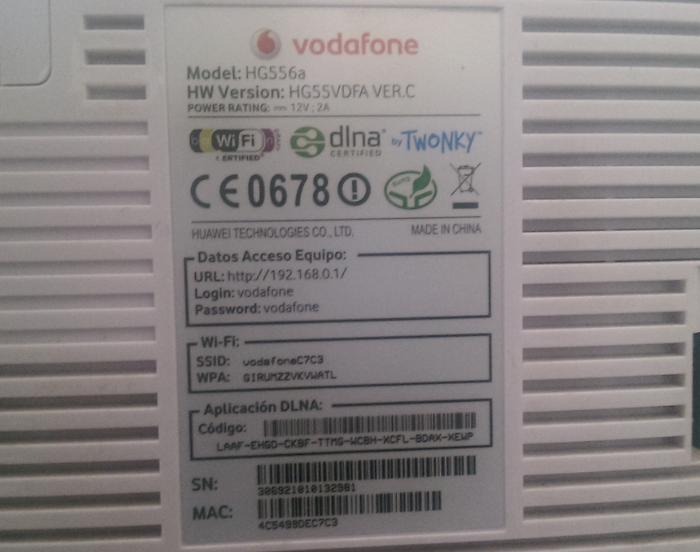
on the back of the router. Usually, the default basic credentials are mentioned in the router itself, if not you may consult the user guide if any that came with the router. The defualt user name is 'vodafone' and the default password is also the same - 'vodafone'. Refer the image, which is that of my Vodafone router and you can see the defaults printed there in.


You connect your router to your laptop or desktop using ethernet cable and login into the web administration of the router using the default IP of 192.168.0.1. Alternatively, you may connect through wifi as well, using the default SSID and the WPA as printed at the back of the router. Type the URL http://192.168.0.1/en_US/backupsettings.conf on the browser after logging in with the basic credentials.


This will prompt you to download the settings file and depending on your browser settings, allow the download into a desired location. This settings file is basically in xml format and so, you may open this using notepad or wordpad. Search for the word 'syspassword' and you will see the admin password as in this image. You may observe that the value for the key sysPassword in this case is "VF-456gIr". This is the password for the user 'admin'. Log out of the basic user login and then login again using the admin credentials as retrieved above and you are now on course to perform advanced setup tasks on your router.

It may be possible that the firmware version of your router may be different and in that case, there is a possibility that this technique might not work for you. If so, share with me more details about your router and I can see if some help is available elsewhere.

Saturday, 3 May 2014

Glitch in Power Switch on the Desktop

Question:

The power switch on my desktop has developed some glitches. On a quick examination, I found that the switch mounted on a small board fixed on to the cabinet and this cabinet is an unbranded one bought in the grey market. I have doubts if the switch can be replaced or if the small board housing the switch will be available at all in the market. Is there a work around for this?

By: Anonymous

Answer:

There is no straight answer for your question, as the switch, the board housing the switch will greatly vary from the cabinet to cabinet. For example, some cabinets are designed to have the LED cluster integrated in the same board and the physical dimension of such boards vary depending on the position and layout of the cluster. The switch can certainly be replaced, but needs a physical examination. As such, you may get hold of a next door PC repair shop, who does chip level servicing and get this serviced.

Just in case if your PC is 4 or 5 years older, and depending on your usage, you may consider upgrading your PC and in the process, change the cabinet as well. If you think, you are fine with your PC and it has much life left over to serve you, you may try the following:

Open your cabinet and locate the front panel connectors and figure out the pins that are connected to your reset switch. Now, pull out your reset switch connector and plug onto the pins marked for power switch. You may also plug the power switch connector onto the reset pins. You may need to consult your mother board manual to do this right or else, things may go wrong and you may even you may brick the mother board or the processor. With this, you may use the reset switch to power on your system and your power switch will act as reset, if to the extent it works. With modern PC mother board designs, and the operating systems, the power off is in fact soft and thus you don't need the switch for powering off. This won't work if your PC is very old and the power switch is mechanical.

Saturday, 26 April 2014

Start PXE Over IPv4

Question:

My six months old HP Laptop which was working fine all along, once did not boot and I could see the text "Start PXE over IPv4" in the black MS DOS like screen and was unresponsive to keyboard and mouse. I waited for some time and then used the power button to hard shut down and then powered it again. This time it booted normally without any issues. Though the problem did occur thereafter, I am curious to know what PXE is all about. Can you explain what it is and the reason for it showing up?

By: Anonymous

Answer:

PXE is the short form for Preboot Execution Environment.It allows PCs or laptops to boot over a network as against booting from the local hard disk. Those who have worked with Novell Netware should be familiar with this network booting, where the Network Interface Cards carry a small add on chip containing the Network Boot Program, which will perform the boot over the network.

To address the large deployment challenges, Microsoft began developing the technology that would allow for network-based installation and PXE was the solution for this. To PXE boot a PC, the BIOS should be setup to boot from network. When set so, the BIOS will first get an IP address for the PC from the PXE Server and thereafter to get the boot image using TFTP on to the RAM and then boot out of that image.

Now in your case, as you have described the issue, it just happened, without you changing any BIOS setting. Normally the BIOS have multiple boot options configured with an order of priority. Your BIOS probably had the Network boot as one of the boot options and on that occasion, for some reason, your hard drive would have been unresponsive for a moment at the time of boot, as the next choice, the BIOS would have attempted to boot from network using PXE. As it might not find a PXE server over the IPv4 network it stayed there. 

You can check the BIOS by pressing F2 when your laptop boots and check if the network boot is configured as an option. You may disable this option, if you are not using the Network booting in your environment. On a different note, you may want to check why your local hard disk was not responsive for the boot on that occasion. That could be an odd occurrence and  the disk may be just fine too.

To know more about PXE booting, check the following resources:

Sunday, 24 November 2013

Chrome on Windows 8 Freezes often

Question:

I have been experiencing issues while using Chrome on Windows 8. Randomly the system PC become unresponsive to keyboard and mouse. While some times the freeze is for a few seconds, most of the times it never comes back. The PC then had to be hard rebooted. Though I have been experiencing more with Chrome on rare circumstances, the system did froze even when I was not using Chrome at all, For your information, I have applied all windows updates and the device drivers seem to be upto date. Any help in resolving this is highly appreciated.

By: Mohan Ramalingam


Answer:

There is no straight fix for this problem, as the cause for this issue could be many fold. For example, I have come across issues around solid state disks with inappropriate hardware and driver configurations. Generally, try these fixes and one of that could work for you.

  • Run the following command bcdedit /set disabledynamictick yes using the command prompt as an administrator and then reboot the system. Dynamic ticks, which exists in Linux for over a decade, is implemented in Windows 8 for the first time. This does not significantly benefit desktops, but mobile devices such as laptops, smartphones and tablets, are expected to be benefited in the form of extended battery life. Unfortunately, Microsoft’s implementation of dynamic ticks in the Windows 8 kernel does not go well, may be due to its dependency on some hardware devices and/or related drivers and thus causing the issue that you have described above. Disabling this on a desktop is unlikely to have any significant adverse impact.
  • It is widely reported that using a solid state disk with older SATA controllers, which are not designed to manage the higher speeds of SSDs could also cause similar issues. It is recommended to use SATA II controller based mother boards. Just in case if you are using an SSD, you may want to check the underlying hardware specifications and fix them if needed.
  • Other possible solutions include:
    • If the issue is specific to chrome, try disabling the chrome extensions on a trial and error basis and some users how found success in resolving the issue by disabling some of the fixes.
    • Ensure that all your hardware devices have latest drivers supported by Windows 8.
    • Run System File Checker tool to see if there are corrupt system files. For this, you may run the command sfc /scannow in a command prompt with administrator privileges. This will report if there are issues with system files and if so, you may want to reinstall or reset the Windows 8 operating system.
    • Defrag your hard drives
    • Clear history and temporary files

You may write a response to this post in the form of comments, if any of the above has helped resolve your issue.

Update:

If your experience of freeze is not specific to Chrome or any one application, then you have reason to suspect the hardware. Overheating CPU has been found to be one of the most common cause of such freezes. Ensure that the fan mounted on the Processor and other fans attached to the chassis are working fine. Use the hardware monitoring tools supplied by the manufacturer to keep a watch on the CPU temperature.

The next possible cause would be incompatible drivers. Ensure that you have all the hardware drivers updated. Usually, when you have upgraded your Windows 7 to Windows 8, it might be possible that the old drivers continue to be in use and Windows OS might not find updates. But driver updates could in fact be available from the device manufacturers. Better search for the appropriate updated drivers and apply them.

Thursday, 13 June 2013

Unknown device on DELL XPS 13

Question:

I use a DELL XPS 13 Ultrabook. Though Windows 7 was the bundled operating system, I have upgraded to Windows 8. Though it all work fine, I see a device in device manager marked as unknown. The properties dialog lists the hardware IDs as ACPI\VEN_INT&DEV_33A0, ACPI\INT33A0 and *INT33A0. My attempts to search DELL driver download have failed as I could not find the appropriate driver. Can you help me find and fix this?

By: Rakesh Sharma

Response:

INT33A0 should be the port for Intel Smart Connect Technology (iSCT). Given that Windows 8 is designed as the OS for PCs and as well as smart devices, there is a need to use the communication components even when the device is in sleep mode. Intel's iSCT enables this feature and this feature is controlled by the System BIOS. Not all hardware may have support for this feature, but those that have the support would have a setting in BIOS to enable this capability. Just make sure, you may check out your BIOS and try disabling this feature and you may notice the 'Unknown device' disappear in the device manager.

The driver for this feature can be downloaded here on the Intel website. Try installing this component and see if your problem gets resolved. You may have to run the installer using 'Run As Administrator', even though the user account with which you have logged in has Administrator privileges.