Showing posts with label networking. Show all posts

Saturday, 2 August 2014

Losing Wi-Fi connection after sleep

Problem:

I use a HP Probook Laptop at home running Windows 8.1 pro. I usually close the laptop whenever I take a short break so that I can resume my work where I left after the break. But, I find that upon opening the Laptop, the wifi does not connect and that too randomly. That means, it works fine on certain occasions and it doesn't on certain occasions. Some times, a restart helps connecting but not always. What could be the problem and how to get this resolved.

By: Lalith Venkateswaran

Solution:

This could be due to a combination of multiple issues relating to the configurations in your laptop and as well as on your router.

Upon closing the lid, the laptop goes to sleep mode and powers down the built in wifi device. Which might cause orphaned IPs at your router end and as you reconnect again and again, you might exhaust the DHCP range that your router is configured with. Check if this issue happens when you are on battery. If yes, then you may configure your power options so that your device does not get powered down, every time you close your laptop. You find this setting in the Power management tab of the wifi-adapter configuration. You may also review the advanced power settings for the wifi adaptor under the power options.

When your wifi connection fails upon wake up, you may check if you are able to connect to a different wifi network. If you don't have a different wifi network, you simply use the hotspot feature on your smartphone and try if your laptop can connect to it. If yes, then it is not just the wifi device on your laptop, it could be due to issues with your wifi router as well. Some routers may have issues in accepting connections from the same devices with the same mac id, as the previous connection might still be there. Try the following steps, which might solve your problem:


  • Try setting a shorter DHCP lease time, so that the orphaned connections get released sooner, so that your router has no problem in accepting a fresh connection.
  • Use the DHCP reservation, so that every time the laptop tries to establish a connection, the router assigns the same IP and thus no need for lease expiry / renewal.


Post a comment if this does not solve your problem.

Sunday, 29 June 2014

Administration of Vodafone HG556 Router

Question:

I have a Vodafone HG556a router, which I was using while I was in Ireland with Vodafone network. This router has a USB port and as well as an ADSL port. So I thought that this router can be used back in India with BSNL or such other ADSL Networks in India. When I login to the router with the given default password, I could only see the basic settings and I could not see menu / options to setup the mac filtering and other advanced security settings. I searched google and figured out that there will be a different credential to get into the advanced settings. I tried with the default admin credientials but it does not work. Any help that you can offer here will be of great use for me.

By: Sreekumar Rajan


Answer:

Luckily, I too have a similar router and so I am sure I can help you here. Basically, these routers are locked with the network service providers and hence for any advanced setup, you may have to reach out to their customer service, who will be able to reconfigure your router remotely. Don't worry, there is a way to get the admin credentials and you do not have to reach out to the customer service team of Vodafone (overseas).


I assume that you have your basic user credentials. If not, you may perform a hard reset of the router and then look for the credentials
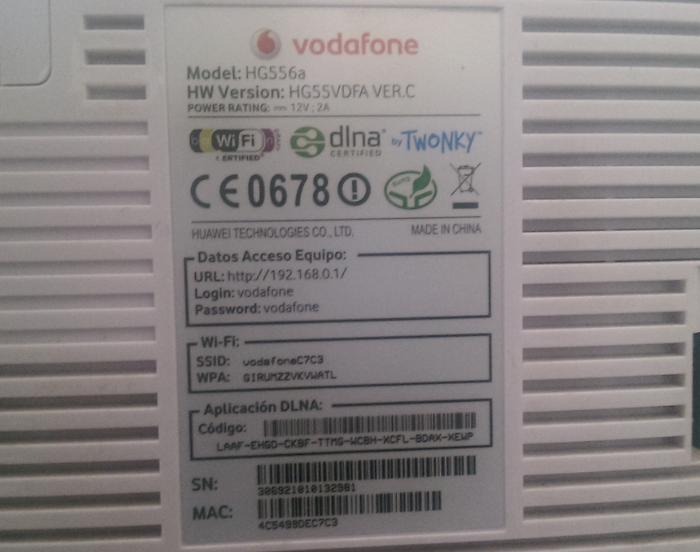
on the back of the router. Usually, the default basic credentials are mentioned in the router itself, if not you may consult the user guide if any that came with the router. The defualt user name is 'vodafone' and the default password is also the same - 'vodafone'. Refer the image, which is that of my Vodafone router and you can see the defaults printed there in.


You connect your router to your laptop or desktop using ethernet cable and login into the web administration of the router using the default IP of 192.168.0.1. Alternatively, you may connect through wifi as well, using the default SSID and the WPA as printed at the back of the router. Type the URL http://192.168.0.1/en_US/backupsettings.conf on the browser after logging in with the basic credentials.


This will prompt you to download the settings file and depending on your browser settings, allow the download into a desired location. This settings file is basically in xml format and so, you may open this using notepad or wordpad. Search for the word 'syspassword' and you will see the admin password as in this image. You may observe that the value for the key sysPassword in this case is "VF-456gIr". This is the password for the user 'admin'. Log out of the basic user login and then login again using the admin credentials as retrieved above and you are now on course to perform advanced setup tasks on your router.

It may be possible that the firmware version of your router may be different and in that case, there is a possibility that this technique might not work for you. If so, share with me more details about your router and I can see if some help is available elsewhere.

Saturday, 28 September 2013

Setting up Second Wi-Fi Router to LAN

Question:

My office has two sections operating on different floors of the building. We are using a Wi-Fi router for our office LAN & Internet access, but the range of this router is not enough to support the other floor area. We understand that connecting another router would need a different subnet and what we need is just a switch. Is there a way to have the second router setup to just function as switch?

By: Arun Viswa

Answer:

While there are specific devices that will meet this requirement, yes, this can be achieved using Wi-Fi routers as well (Some routers may have hardened the configuration and thus restricting this ability). The routers have the switching function within it and you just need to use the switching function alone. You can achieve this by configuring your second router as below: For this purpose, let us assume that your first router is setup to have your office network as 192.168.3.0 / 255.255.255.0 with a gateway address as 192.168.3.250 and DHCP Server enabled for a range of IP addresses.


  1. Some routers automatically setup the WAN port upon connecting the network cable on the WAN port. And so, do not connect your network cable into any of the ports yet.
  2. Just connect a PC or Laptop to one of the LAN ports(usually numbered) and just go to the LAN setup section using the web based setup portal. Usually this can be accessed using the URL http://192.168.0.1. Consult your router manual for the default IP and the admin credentials.
  3. Disable the DHCP Server and assign a static LAN IP within the same subnet, that is outside the DHCP range of the primary router. In our case, let us assign 192.168.3.255 with the same subnet and gateway as that of the first router.
  4. Now connect your LAN cable from the first router into another numbered LAN port(not the WAN port).
  5. Make sure that your primary router's DHCP range is wide enough to support the number of computers and devices that you would be connecting from both the floors of your office.


Incidentally, if you setup your Wi-fi with the same SSID and security setup as that of your first wi-fi router, you have wi-fi roaming also working. i.e. your office wi-fi devices configured to connect to your first router will automatically connect to the second router when they move into the wi-fi range of second router. Please note that as I have indicated, some router's have pre-configured firmware restricting this kind of setup.

You can always reach me for further clarification on this.

Saturday, 10 August 2013

Why Active / Active DC Design is not preferred by many yet?

Question:

We all know that Active / Active is always there as an option for a Data Center design. But We could not find many actual implementations out there. While everyone think that the Active / Active DC solution maximizes the DR investments, not many are getting in there. Can you highlight the challenges and issues that holds this option back?

By: David Matt

Response:

There are three key issues or challenges that when addressed will result in higher investment than expected and / or increase the complexity. The three challenges are explained further as below:

  1. Network Latency - To be Active / Active, the data created in on DC should also be created in the other DC with least latency, so that the user requests land on either DC would happen to see the most current data. Though there are tools and technologies to offer active / active solution, they are constrained by a minimum network latency between the DCs. For instance, EMC offers VPLEX based active / active DC solution, but requires that the latency be 50 ms or less. Considering the speed of light and the availability of the optic fiber channels, theoretically, this is achievable within reasonable distance, but in practice, there are various other factor that would have impact on achieving the required latency consistently.
  2. Network capacity - When we talk about active / active data centers, it is not just the database replication, it also requires the application state and associated data to be replicated in real time. More over, given the actual fluctuates, there is a need to provision for the peak time capacity so as to ensure that the latency does not go down in peak periods. Thus, the network capacity needs can easily be three times or even four times of that needed for an active /passive DC design.This need will straight away beat the assumed cost advantage of using the DR site for production as well.
  3. Overall DR Capacity - Assuming that the DR site will also be active for read and write, there is a tendency size the Primary and DR sites to half or little over half of the planned production capacity so that both put together would meet the production demands. Now, in such a scenario, if the either of the site fails, the production capacity comes down to half leading to ineffective DR.

 Given the above key challenges and other related issues, organizations end up with Active / Passive DC solutions or a hybrid solution, where specific applications are partitioned to run out of specific Data Center.