Question:
I have a Vodafone HG556a router, which I was using while I was in Ireland with Vodafone network. This router has a USB port and as well as an ADSL port. So I thought that this router can be used back in India with BSNL or such other ADSL Networks in India. When I login to the router with the given default password, I could only see the basic settings and I could not see menu / options to setup the mac filtering and other advanced security settings. I searched google and figured out that there will be a different credential to get into the advanced settings. I tried with the default admin credientials but it does not work. Any help that you can offer here will be of great use for me.
By: Sreekumar Rajan
Answer:
Luckily, I too have a similar router and so I am sure I can help you here. Basically, these routers are locked with the network service providers and hence for any advanced setup, you may have to reach out to their customer service, who will be able to reconfigure your router remotely. Don't worry, there is a way to get the admin credentials and you do not have to reach out to the customer service team of Vodafone (overseas).
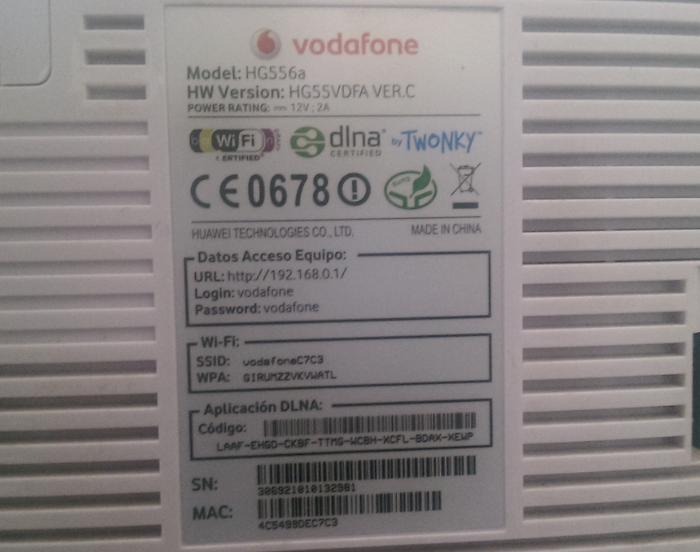 I assume that you have your basic user credentials. If not, you may perform a hard reset of the router and then look for the credentials
on the back of the router. Usually, the default basic credentials are mentioned in the router itself, if not you may consult the user guide if any that came with the router. The defualt user name is 'vodafone' and the default password is also the same - 'vodafone'. Refer the image, which is that of my Vodafone router and you can see the defaults printed there in.
You connect your router to your laptop or desktop using ethernet cable and login into the web administration of the router using the default IP of 192.168.0.1. Alternatively, you may connect through wifi as well, using the default SSID and the WPA as printed at the back of the router. Type the URL http://192.168.0.1/en_US/backupsettings.conf on the browser after logging in with the basic credentials.

This will prompt you to download the settings file and depending on your browser settings, allow the download into a desired location. This settings file is basically in xml format and so, you may open this using notepad or wordpad. Search for the word 'syspassword' and you will see the admin password as in this image. You may observe that the value for the key sysPassword in this case is "VF-456gIr". This is the password for the user 'admin'. Log out of the basic user login and then login again using the admin credentials as retrieved above and you are now on course to perform advanced setup tasks on your router.
It may be possible that the firmware version of your router may be different and in that case, there is a possibility that this technique might not work for you. If so, share with me more details about your router and I can see if some help is available elsewhere.
I have a Vodafone HG556a router, which I was using while I was in Ireland with Vodafone network. This router has a USB port and as well as an ADSL port. So I thought that this router can be used back in India with BSNL or such other ADSL Networks in India. When I login to the router with the given default password, I could only see the basic settings and I could not see menu / options to setup the mac filtering and other advanced security settings. I searched google and figured out that there will be a different credential to get into the advanced settings. I tried with the default admin credientials but it does not work. Any help that you can offer here will be of great use for me.
By: Sreekumar Rajan
Answer:
Luckily, I too have a similar router and so I am sure I can help you here. Basically, these routers are locked with the network service providers and hence for any advanced setup, you may have to reach out to their customer service, who will be able to reconfigure your router remotely. Don't worry, there is a way to get the admin credentials and you do not have to reach out to the customer service team of Vodafone (overseas).
I assume that you have your basic user credentials. If not, you may perform a hard reset of the router and then look for the credentials on the back of the router. Usually, the default basic credentials are mentioned in the router itself, if not you may consult the user guide if any that came with the router. The defualt user name is 'vodafone' and the default password is also the same - 'vodafone'. Refer the image, which is that of my Vodafone router and you can see the defaults printed there in.
You connect your router to your laptop or desktop using ethernet cable and login into the web administration of the router using the default IP of 192.168.0.1. Alternatively, you may connect through wifi as well, using the default SSID and the WPA as printed at the back of the router. Type the URL http://192.168.0.1/en_US/backupsettings.conf on the browser after logging in with the basic credentials.
This will prompt you to download the settings file and depending on your browser settings, allow the download into a desired location. This settings file is basically in xml format and so, you may open this using notepad or wordpad. Search for the word 'syspassword' and you will see the admin password as in this image. You may observe that the value for the key sysPassword in this case is "VF-456gIr". This is the password for the user 'admin'. Log out of the basic user login and then login again using the admin credentials as retrieved above and you are now on course to perform advanced setup tasks on your router.
It may be possible that the firmware version of your router may be different and in that case, there is a possibility that this technique might not work for you. If so, share with me more details about your router and I can see if some help is available elsewhere.
