Friday, 26 June 2015

SSRS Report Builder 3.0 - How to avoid page breaks in Report Viewer

Problem:

The Report Viewer displays the tabular reports with pagination. This is inconvenient to users as they have to click on the page navigator to browse through the report. Is there a way to have the report viewer display all the rows in one view, so that users will find it convenient to browse through the report by just scrolloing up and down?

By: Muthu Saravanan

Solution:

Use the Interactive Size property of the report to overcome this. This property will not however show up in the Report Properties dialog. This will be available on the Properties Pane, which shows up ususally on the right side of the screen. If it is not showing up, check the options under the View menu. To have all records in single view without pagination, set the Height under Interactive Size to 0 cm.


This setting is effective for display in the report viewer only. Page breaks in print and other export formats will be based on the Page Size rather than the Interactive Size property.

Friday, 6 March 2015

Whitelisting email or domain in Gmail

Question:

How to whitelist or blacklist an email domain in gmail?

By: Radhakrishnan Ravi


Answer:

Google has a might spam handler and does a very decent job. However, if you want to put a rule to either whitelist or blacklist, use the filter options provided under settings menu. It is simple and the following steps will take you through in implementing a filter of your choice.

Choose the Settings menu from the Settings drop down menu on the top right beneath your profile picture.


Select the Filter Tab, which will list the filters and will have a link at the bottom captioned ''Create a New Filter". As you may observe, you have an option to import filters as well using the "Import Filter" link.


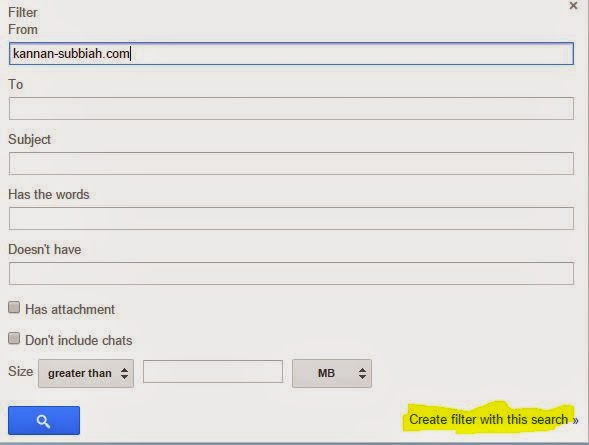
Clicking the create filter will take you to the advanced search window as in the image on the right. Alternatively this search window can be accessed using the tiny drop down icon provided on the right side of the search box within gmail. Basically, you will have to decide on the search criteria to apply the filter for. i.e, if you want to whitelist the domain kannan-subbiah.com, enter the domain name in the From field of the search window. Upon entering a valid search criteria, you will find the link "Create a filter with this search" enabled.


Click on this and you will see a Filter Dialogue window as in the image on the left. The options provided are self explanatory and choose appropriate action you want to apply for the chosen search criteria. For instance, if you want to white list the entered domain, select the option "Never send it to Spam" and then click on the Create Filter button at the bottom. Similarly, if you want to permanently delete emails from a specific sender, you may choose the delete option here.

The filters so added will appear in under the Filter tab of the settings screen. You will then have the option to remove or modify the filters  as well.

Sunday, 9 November 2014

Microsoft Expression Encoder

This post is not in response to a specific problem or question, but could be a response to a potential question from some one.

I was looking for a cost effective and easy to use tool for capturing screens and produce videos. There are many tools, in the freeware, shareware and commercial category for the purpose. But the one that I find interesting is the one from Microsoft, the Expression Encoder. While Microsoft has stopped supporting the commercial version of the product, the same is available as a free download. I am sure, many of you might know about this, but for those who are not, this post will give a glimpse, so that one can start using it and see its advantages.

Expression Encoder Pro is a component of the Expression Studio, which is currently not sold as a product. In addition to Expression Encoder Pro, the studio also bundles with it Expression Web, Expression Blend and Expression Design. Expression Web is intended for creation of responsive websites leveraging CSS3 and HTML5. Expression Blend is intended to build interactive UI for windows store applications. Expression Design, combined with Expression Blend and Visual Studio helps building innovative, user-centric, fast and fluid applications. Check out more about the changes and availability of Expression products on the microsoft site.

Let us look at what Expression Encoder can offer us. Expression Encoder 4 Screen Capture is also installed along with the Expression Encoder 4. The Screen Capture component offers you to record videos using the camera attached to the device / PC, record audio using the microphone, and to record the selected area of the screen.


On clicking the Record button, you will be prompted to select a rectangle area to capture and once done, you can continue with your actions on the screen as the recording continues.Once, done, you stop the recording and the output is produced as a .xesc file, which can be further edited using the Encoder.

To get your captured video encoded into a video output, you will perform the following using the Expression Encoder

  • Choose your project. 
  • Import your source video. 
  • Modify your video. 
  • Set preview and encoding options. 
  • Choose an output format. 
  • Render your video.
Getting used to was not very difficult and the product comes with a useful help document. The tool allows you to overlay visual still and moving image file, edit the sub titles, captions and descriptions, add audio streams, apart from allowing you to insert and cut parts of the source video.


Few of the limitations include, inabitlity to add more than one overlay, the supported output format limited to Windows Media Video (.wmv) and IIS smooth streaming. While the tool has much more capabilities, for the specific purpose of creating product demo or tutorial videos, this suits very well. As you know there are many tools out there to convert .wmv to other video formats, like .mp4.

Try it out and share your feedback here.

Thursday, 6 November 2014

Windows Steps Recorder - For Problem Reporting

Question:

I work in QA department, where reporting issues and defects with all supporting details to well describe the problem is key. We usually use a screen capture tool to capture the images, but then to assemble them as a problem report, we need to depend upon MS Word or such other tool. I am writing to you to check if there is a better tool that helps to perform this task even better.

By: Krishnan Sadasivam

Response:

If you are asking about a tool for screen capture, Snipping tool, which is part of Windows OS from version 7 onwards is a nice tool to capture parts of the screen. There is another tool which again is part of the Windows OS from version 7 upwards, which is called 'Steps Recorder'. This tool captures your actions and associated screen and produce a descriptive output, which will make it a lot easier for the problem reporter and the problem sover. Here is how it works in Windows 8 or 8.1:


  • Press Windows Key+Q to bring up the search panel on the right.
  • Type steps and you will see the "Steps Recorder" tool show up in the search results
  • Click on it and it will launch the Steps Recorder Tool

  • Click on the Record button and then start reproducing the problem you want to report. 
  • As the recording is in progress, you have the option of adding comments to certain specific area of screen by highlighting it.
  • Once done click on stop recording and your actions is compiled as multiple steps and optionally as a slide show.


  • You have option to save the steps as a compiled html and email it as well.


This free tool will certainly be handly for reporting computer software problems.

Sunday, 2 November 2014

Excel Pivot & Shortcut Keys

Question:

I understand Microsoft Excel is a good start for analytics on data. Please direct me as to how to create a basic Pivot Table. You may also share me any tutorial references to learn more on Pivot feature in Excel. Also share Short Cut keys in Excel

By: Vinay Kumar

Response:

Learning to create a Pivot is fairly easy but the tough part is to know how you want the data to be presented in the Pivot. For this you need to know a good understanding of the data on hand and what you want out of the data. For this question, I assume that you are already clear about your needs.

Here is how you can quickly get a Pivot of your Excel Data:

  • Select the data range that you want to apply Pivot on and then click on the Pivot button, which is in the Toll bar ribbon under the Insert Menu. You may also use the short cut key Alt + NV
  • This will open up the Pivot dialog window where you will have option to adjust or change your your data range (as you may observe, you can also use an external data source by choosing the appropriate option) and other options.
  • Clicking ok on this dialog window will open up the Pivot table in a new work sheet (default option) and will show the Pivot Table Fields task pane on the right side. You can drag and drop the fields into Filters, Columns, Rows and Values. 
    • FILTERS: This area contains the fields that enable you to page through the data summaries shown in the pivot table by filtering out sets of data — they act as the filters. For example, if you designate the Year field from a data list as a report filter, you can display data summaries in the pivot table for individual years or for all years represented in the data list.
    • COLUMNS: This area contains the fields that determine the arrangement of data shown in the columns of the pivot table.
    • ROWS: This area contains the fields that determine the arrangement of data shown in the rows of the pivot table.
    • VALUES: This area contains the fields that determine which data are presented in the cells of the pivot table — they are the values that are summarized in its last column (totaled by default).
  • Set these in the way you want and your Pivot table is ready.

To know more about other complex and advanced features of the Pivot Table, check here.

Here is a nice Cheat Sheet containing all the Short Cut keys for Excel. If you are a key board expert, then you will want to check out this as well.


Friday, 29 August 2014

Windows 8.1 - Switching to Local Account

Problem:

Microsoft Windows 8.1 update by default prompts to use a Microsoft live account and without noticing, I just went ahead and got signed in using my Microsoft Account. Now how do I switch to a local account?

Solution:

Yes, Windows 8.1 by default takes the users to sign in using Microsoft live account. However, if you carefull observe, you have the option to use a local account, but Microsoft ensured that you will miss that. Windows however allows users to switch between live account and local accounts.  To switch to a local account, follow these steps:


  • Goto Your Account Settings screen. You can do this by typing "Your Account" on the Windows Search screen (Windows Key + Q) .  

  • You will see a link "Disconnect" under your user account. You should click on Disconnect, which will take you through setting up your local account.

  • As a next step, Windows will have to authenticate you once again and will prompt for your current password.
  • The next step will prompt you for inputs to have your local account created. 
  • You will then be prompted for a confirmation and you click on the Singout and Finish button.


You may want to note that by switching to your local account, you will lose the synchronization with your sky drive.


Sunday, 24 August 2014

Error connecting to SMTP Server

Problem:

All of you would have faced issues when connecting to a remote server on ceertain ports. The issue will be strange to trouble shoot as the same connection works from a different network or on the server and so on. I came across such a situation when building and testing a mailing component and I experienced that the .NET SmtpClient component was encountering exception. It took considerable time for me to trouble shoot and get it resolved.

Solution:

My first take was to try whether the credentials that I have used is just fine, by creating an email account in outlook and that worked fine. I just wanted to isolate various probable areas of concern. As such I then tried using an online SMTP server test service, which was showing an error that the client must first check for incoming mails. Telnet to the mailserver on port 25 also gave an error. I then examined our mail server, whether it has any such restrictions, but I could not find any specific restriction that could cause this issue.

My next step was to examine the details of the exception for any possible clues. The inner exception nested couple of levels deep revealed the error as "An attempt was made to access a socket in a way forbidden by its access permissions"

I then tried looking for solutions online there were many posts and one solution was about to try the following and one of that could solve this issue:
  • Restart the windows firewall service
  • Reboot the problematic machine
  • Restart the “TCP/IP stack”. Run CMD as administrator, type “netsh int ip reset resetlog.txt” to reset TCP/IP.
  • Try to temporarily disable antivirus.
After a bit of analysis, I could find that in my case it was the McAfee Endpoint Protection. I could find that the rule "Prevent mass mailing worms from sending mail" was set to block connections on port 25 with certain exceptions. I added the VWDExpress.exe to the exception list and then it started working fine.